
Step 1: Resetting with Default Password
Polycom’s default password is 456.
So before we get started, it’s worth trying to do a factory reset with the default password of 456. To perform a factory reset with the default (or a known) password do the following:
- Click on the Home button
- Scroll to the Settings (gear icon) and click on it
- Go to Advanced
- Enter the admin password (456 by default)
- Go to Administration Settings
- Go to Reset to Defaults
- Go to Reset To Factory
- Say Yes when it asks Are you sure?
If this still does not work, we will go to the next step and perform a reset without the password.
Step 2: Polycom Factory Reset without Password
First you will need to look at the back of your phone to locate the MAC address. This will be a 12 digit number appearing on a sticker at the back of your phone. Write this down somewhere as you will need to enter it as the reset password later:
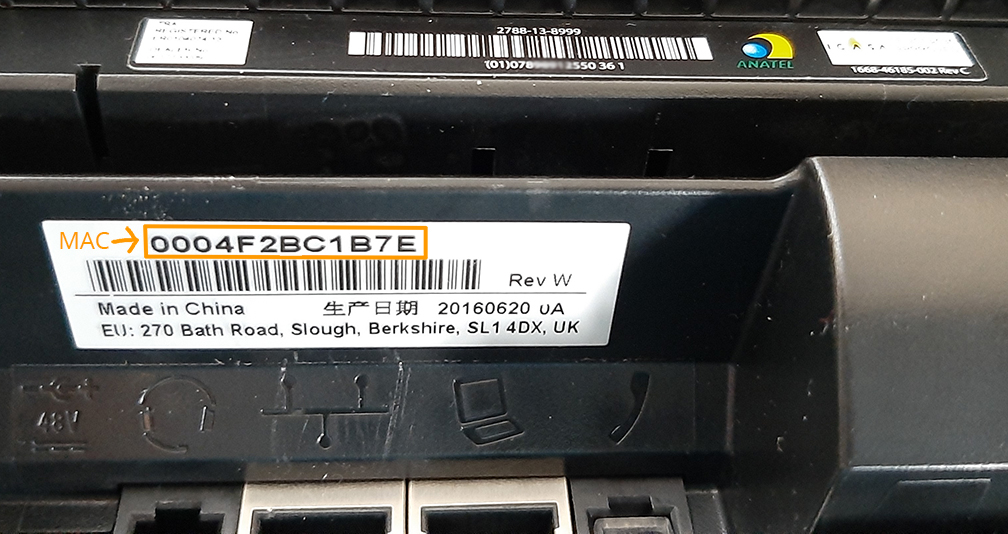
Once you have this address, follow these steps to initiate the reset:
- Power off the phone by unplugging the power or network
- Plug the phone back in
- Wait until you see Cancel, then press Cancel button
- Quickly press and hold down the following keys:
-
- After holding down the correct keys during boot, you should be prompted for an admin password.
- Enter the MAC address of the phone as the password. In order to enter the password, use the keypad to type it in. You will need to switch between numeric and alphanumeric entry modes in order to enter it correctly.
Comments
Article is closed for comments.